Real Android Phones vs Emulators for Social Media Automation
How agencies run TikTok and Instagram work on real devices: what a phone does better than an emulator, where emulators still win, and how to set up a traceable, approval-first workflow.
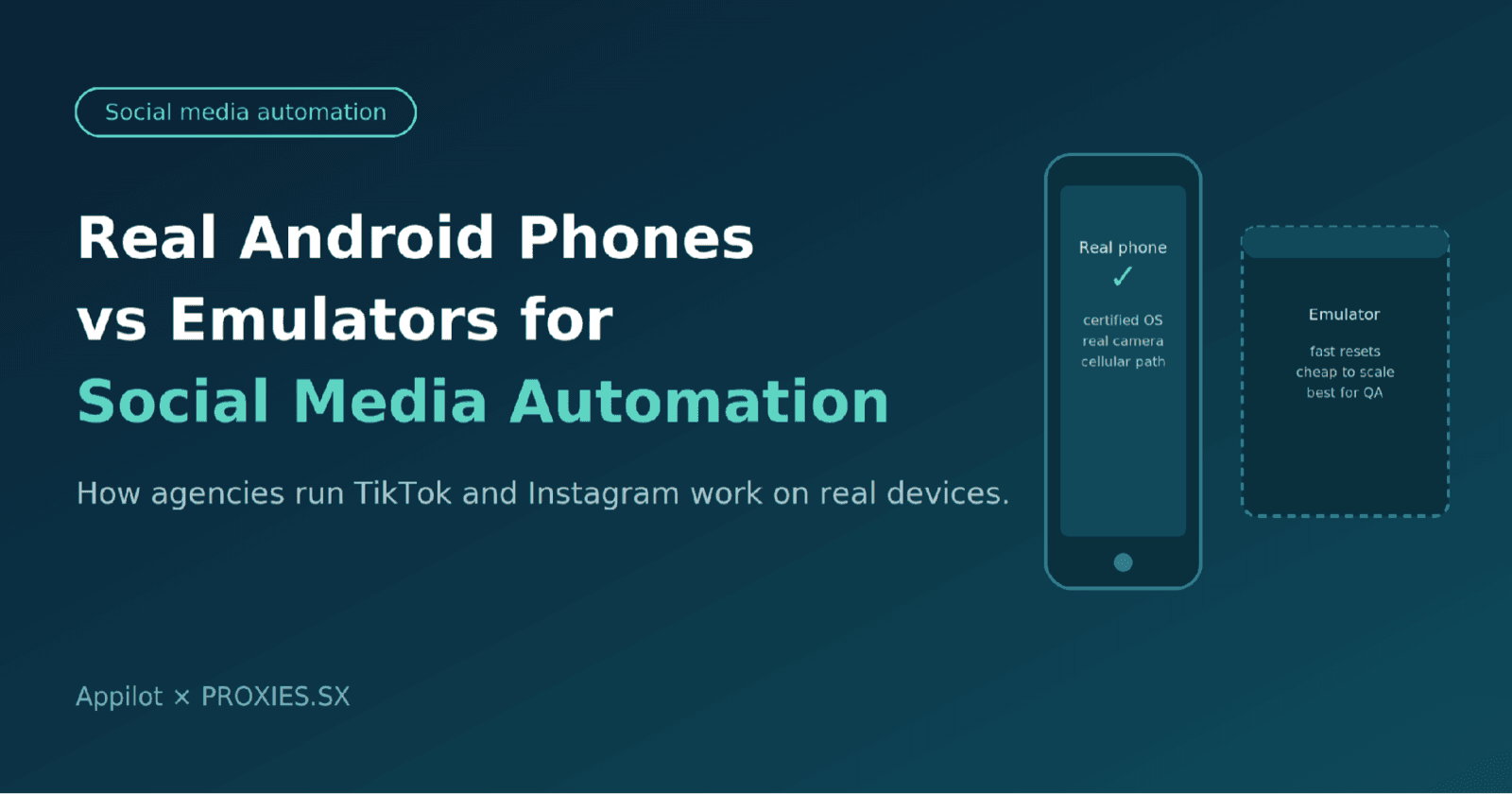
Why agencies ask about real phones and emulators
Agencies that manage social accounts for clients keep running into the same question: should the work happen on a rack of real Android phones or inside emulators? The answer matters because the environment decides how apps behave, how stable a long-running workflow is, and how easy it is to explain what happened when something goes wrong.
At Appilot, we build real-device automation for approved social workflows, so we see both sides of this choice every week. This guide compares the two options in practical terms, shows where proxies and network checks fit, and walks through a seven-step setup. It is written for agencies working on client-owned accounts with permission. It is not a guide to getting around platform rules, and a real device does not make a prohibited activity acceptable.
What is the difference between an emulator and a real phone?
An emulator is software that imitates an Android device on a computer. A real device is a physical phone with its own hardware, operating system image, battery, camera, and mobile radio. Both can run Instagram and TikTok, and both can be driven by the same automation tools. The differences show up in fidelity, scale, and how platforms treat the environment.
Google documents one of these differences directly. Its Play Integrity API returns a device verdict that separates devices that pass system integrity checks and meet Android compatibility requirements from environments that are not physical devices. It even includes a conditional label for emulators that do pass the checks. The same page notes that an app or server decides what to do with each verdict, so the treatment of an emulator can vary from app to app. You can read the details in Google's integrity verdicts documentation.
| Factor | Emulator | Real Android phone |
|---|---|---|
| App behavior | Close to a phone, but some apps limit or change features in virtual environments | Matches what a client’s audience actually sees |
| Camera and media | Simulated camera and codecs | Real camera, real hardware encoding |
| Notifications and sensors | Approximated, sometimes unreliable | Native push, sensors, and permissions |
| Network path | Host connection, or a route you configure | Wi-Fi or cellular, with a path you can verify |
| Integrity signals | May not pass strict device checks | Can pass device integrity on certified, unmodified hardware |
| Cost and density | Cheap to start and easy to multiply | Hardware, power, and space per device |
| Reset and snapshots | Fast and scriptable | Slower; factory resets take time |
| Long-running stability | Depends on the host machine | Stable when power, heat, and updates are managed |
Use the supported route first
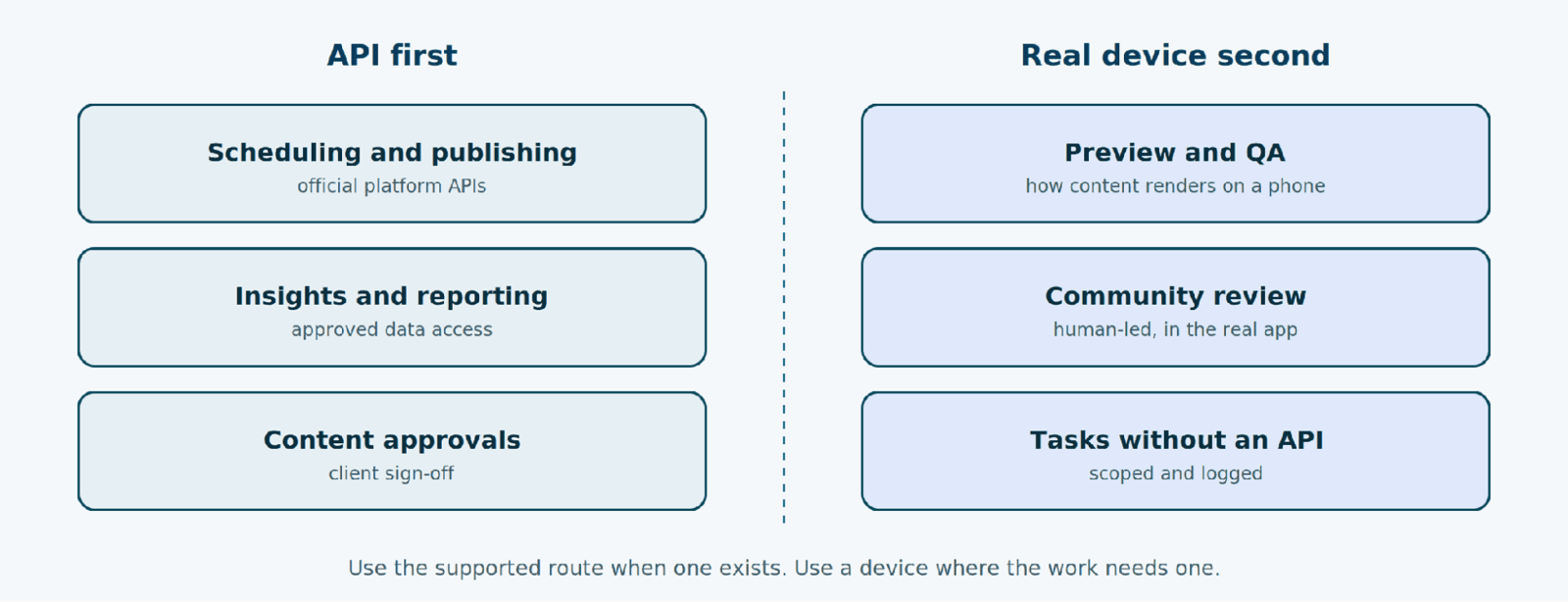
Before choosing a device at all, check whether the platform offers a supported way to do the job. For publishing and scheduling, both networks do. Meta documents a content publishing API for Instagram professional accounts, including rate limits and a way to check usage. TikTok's Content Posting API lets approved apps post on a creator's behalf, and it states that content from unaudited clients is restricted to private viewing until the client passes an audit for Terms of Service compliance.
That leaves a smaller, clearer role for devices. They are the right tool for previewing how content renders on a phone, reviewing comments and messages in the real app, checking regional app views, and covering in-app tasks that no API supports. Each of those jobs should be scoped, logged, and approved by the client.
Where emulators still win
Real phones are not automatically better at everything. Emulators are the right choice for development and testing. They start in seconds, reset to a clean snapshot, and can be spun up inside a CI job. If you are writing and debugging an automation script, you want that fast loop. Layout checks across screen sizes and Android versions are also cheaper on emulators, because you can create a dozen virtual devices in minutes.
The practical split is simple. Build and test on emulators, then run client-facing workflows on real devices once the script is stable. Appium works with both, so the same test logic can move from a virtual device to a physical one with a configuration change.
Why real phones suit client account work
For client-facing work, the main benefit is fidelity. A real phone shows what a client's audience sees, with real media processing, real notifications, and a network path you can inspect. When a creative looks wrong on screen, a physical device is the fastest way to find out why.
The second benefit is stability over weeks. A dedicated phone with a factory image, current security patches, and a locked bootloader is a predictable environment. It also keeps client environments separate, because each device holds one set of apps, one set of sessions, and one alias in your records. Google's own guidance for testing devices makes the same point: for a device to meet integrity checks, keep the factory ROM and a locked bootloader.
The third benefit is explainability. When a device ID, an account alias, and a network route are recorded together, a failed run is easy to diagnose. You can say which phone, which route, and which step failed, and the client can see that nothing happened outside the approved scope.
Where the network layer fits
A phone still needs a network path, and that path should be a deliberate choice. Some agencies use the local mobile connection of each device. Others route devices through a mobile proxy so that region and session behavior are predictable. A provider such as PROXIES.SX mobile proxies offers 4G and 5G routes with per-GB pricing, which suits workflows where bandwidth varies by day. When a client needs one fixed device behind each phone instead, PROXIES.SX also rents Private modems: a whole 4G/5G modem for one customer, by the day, week or month, at a flat rate rather than per GB.
Two settings matter most. A sticky route keeps the same endpoint for the length of a session, which is easier to reason about for signed-in work. A rotating route changes endpoints between connections, which suits independent public requests. PROXIES.SX explains the difference in its guide to rotating vs sticky sessions, including a useful caveat: a pinned mobile endpoint can still show several exit addresses over time because the carrier network may change its public IP. Plan for that, and log what you observe instead of assuming it.
Provider sourcing matters too. Ask where the IPs come from and whether the supply is auditable. PROXIES.SX publishes a page on where its IPs come from, which is the kind of disclosure a client will expect you to be able to point to.
Checks before a device session starts
A route that connects is not necessarily a route that is correct. Run a short set of checks before any scheduled work begins, and again after any change. Free tools make this quick: the proxy tester confirms that the credentials and protocol work, and the DNS leak test shows which resolver the device is actually using.
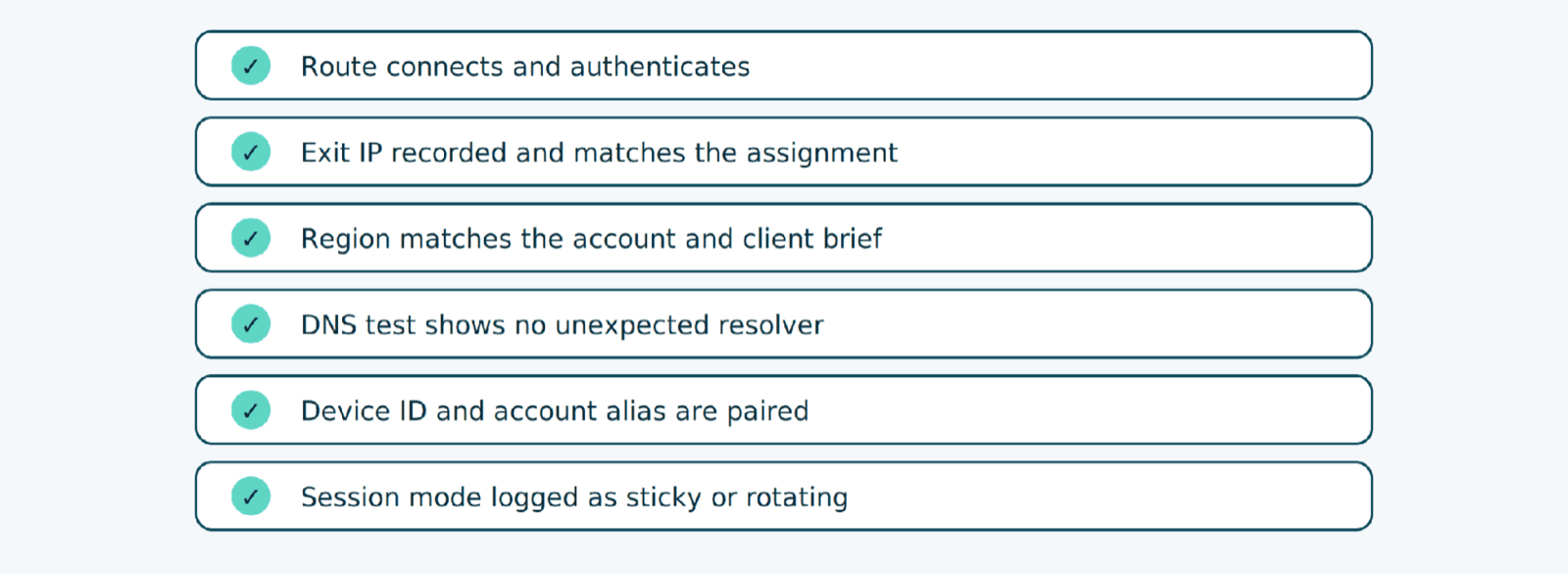
| Check | What to record | Why it matters |
|---|---|---|
| Connection | Success or failure plus the error | Separates provider faults from device or app problems. |
| Exit IP | Observed public address | Confirms the device uses the assigned route. |
| Region | Expected and observed location | Catches routing to the wrong country before work starts. |
| DNS | Resolver seen by a leak test | Shows whether lookups follow the route you intended. |
| Device match | Device ID and account alias | Keeps ownership clear when several phones run. |
| Session mode | Sticky or rotating, plus start time | Explains any change in exit address later. |
If the region looks wrong, do not start buying more traffic. PROXIES.SX has a short walkthrough on how to diagnose a proxy location mismatch, which separates the exit IP, the GeoIP result, the carrier network, and the location the app reports. If rotation behaves unexpectedly, its guide to testing mobile proxy IP rotation shows how to sample exit addresses with a bounded script.
How to set up a real-device workflow in seven steps
Step 1: Confirm authorization and scope
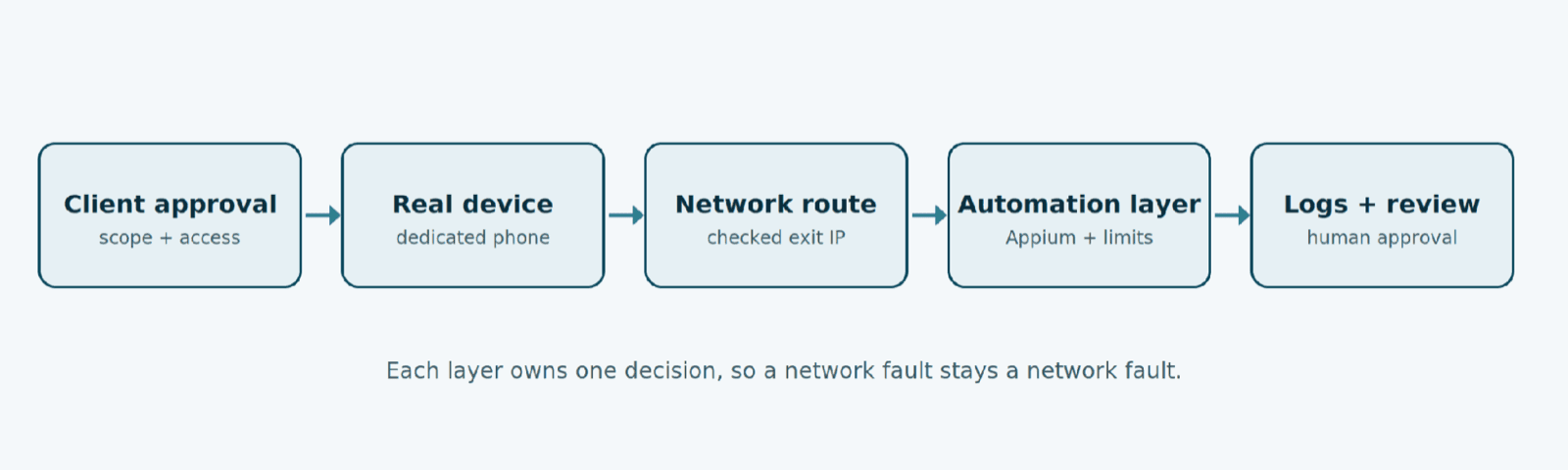
Get written approval from the client for each account, list the tasks that are allowed, and review the platform's current terms and developer rules. Decide in advance which tasks use an API and which need a device. Keep sign-in credentials and two-factor access with the client or in a shared vault, never in a script.
Step 2: Prepare the device pool
Use dedicated Android phones on a recent, certified OS image with a locked bootloader and no root. Give every phone an alias, label it physically, and record it in a device registry. Plan for power, cooling, and a USB hub, because long-running devices fail from heat and cables more often than from software.
Step 3: Assign a network route per device
Choose a SIM, a Wi-Fi network, or a mobile proxy for each phone. If you use a proxy, follow the provider's Android setup guide, then run the proxy tester and DNS leak test. Record the exit IP, region, and session mode in the registry.
Step 4: Install apps and sign in the approved way
Install Instagram and TikTok from the official store, grant only the permissions the task needs, and sign in to client-authorized accounts only. Do not reuse a device across unrelated clients.
Step 5: Split work between API and device
Schedule and publish through the supported APIs where you can. Keep on-device tasks to preview, QA, and review, plus any in-app work the client has approved in writing.
Step 6: Add the automation layer with limits
Drive the device with Appium or a managed tool, and keep pacing conservative and separate from the network layer. Pause the run, instead of retrying, when the app shows a verification prompt, a warning, or an unexpected screen. Route paused runs to a human approval queue. For teams that would rather not build this layer themselves, Appilot's real-device social media automation services cover deployment, integrations, monitoring, and maintenance around the same stack.
Step 7: Log, review, and rotate hardware
Keep a log of every run with the device, route, result, and reviewer. Review failures weekly, retire devices on a schedule, and re-run the network checks after any OS update, app update, or route change.
Common mistakes to avoid
- Starting without written scope. A client who cannot see what was approved will not trust the logs.
- Treating the proxy as the whole setup. A clean route does not fix aggressive pacing, a broken script, or an unapproved task.
- Retrying through warnings. A verification prompt is a signal to stop and review, not to try again faster.
- Sharing devices across clients. Mixed sessions make audits and troubleshooting much harder.
- Skipping the post-update checks. OS and app updates change behavior, so test again after each one.
What real devices do not promise
A physical phone does not guarantee that an account stays in good standing, that an app behaves the same next month, or that a task will always complete. Platforms evaluate behavior, content, account history, and policy compliance, not only the environment. A real device with a clean network path can still run an activity that breaks the rules, and that is a risk the agency and the client own. What a well-built setup can give you is narrower and more useful: an environment that is predictable, a record of what ran and why, and a human who can stop it.
Frequently asked questions
Are real devices better than emulators for social media work?
For client-facing work, usually yes, because they match what the audience sees and give you a stable, traceable environment. For development and testing, emulators are faster and cheaper. Most agencies use both.
Can I run Instagram or TikTok in an emulator at all?
Often you can, but support varies by app and version, and some apps limit features in virtual environments. Test with the exact app builds you plan to use, and do not assume an emulator will behave like a phone.
How many accounts should one device handle?
Fewer than you think. Keep each client’s accounts on dedicated hardware, keep activity within what the client approved, and follow each platform’s current rules on accounts and automation.
Do I need a proxy if the phone already has a SIM?
Not always. A proxy helps when you need a predictable region, a documented route, or per-GB billing. Whichever route you choose, record the exit IP and region and test them before each scheduled run.
Where do proxy and device guides fit together?
Start with the provider’s mobile proxy overview to choose a route, use the device checklist above to verify it, and keep approvals and logs in your own system.
The overview mentioned in the last answer is the PROXIES.SX mobile proxy page.
Plan your device stack
Pick a route that fits the workflow, then test it on the actual device. See how PROXIES.SX works or compare options on its pricing page. For the automation and maintenance side of real-device workflows, see the Appilot services linked in Step 6.
This is a guest article contributed by the Appilot team and published by PROXIES.SX. The opinions and workflow advice in it are Appilot's own. Statements about PROXIES.SX were checked against our product before publication, and a sentence on Private modems was added by our editors. Images are supplied by Appilot. Outbound links to appilot.app use rel="nofollow sponsored noopener noreferrer".