WADE X + PROXIES.SX: Simple Proxy Setup for an Anti-Detect Browser
You have a PROXIES.SX proxy and a WADE X profile. The only real question is practical: where do the host, port, username, and password go? This is the short path — written for regular users, not network engineers.
The short answer
In WADE X, open your profile → CONNECTION → choose HTTP or SOCKS5 → paste the proxy ashost:port@login:password→ run CHECK PROXY & GEO → SAVE (or SAVE & RUN). PROXIES.SX supplies the proxy route; WADE X gives that route an isolated browser profile with its own cookies and fingerprint for multi-account work.
The basic flow
Copy your PROXIES.SX proxy details (host, port, username, password)
Open the right WADE X profile (or create a new one)
Go to CONNECTION
Choose HTTP or SOCKS5
Enter the proxy as host:port@login:password
Run CHECK PROXY & GEO
Save and launch the profile
Why use PROXIES.SX with WADE X
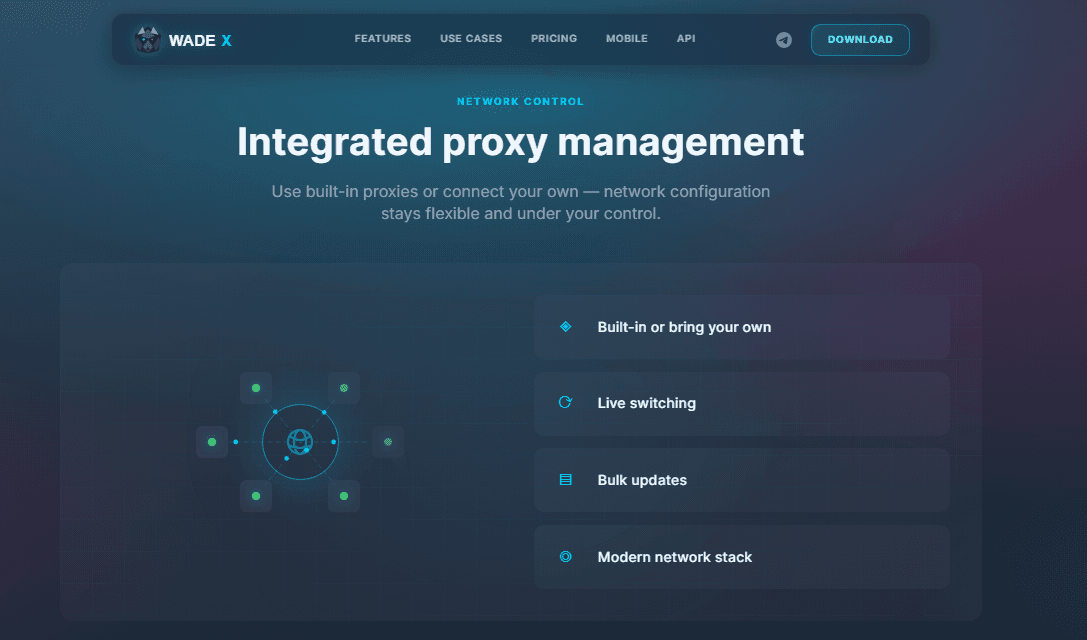
WADE X is built for multi-account work with isolated browser profiles — each profile carries its own cookies, fingerprint, connection type, and saved environment. PROXIES.SX provides the real 4G/5G mobile and residential IPs that act as the network route for those profiles. Keep the roles separate — WADE X is the browser environment, PROXIES.SX is the network — and the whole setup gets much easier to reason about.
- Connect a PROXIES.SX proxy to a specific WADE X profile
- Test the proxy before launching the profile
- Keep one proxy strategy per profile
- Use Proxy Manager when you run several profiles
- Check IP and location before important work
This gives you a cleaner way to connect a proxy to an anti-detect profile. It does not guarantee account safety or platform results.
What you need before setup
From your PROXIES.SX dashboard, grab the exact values — don't guess the port or rewrite the username by hand: host, port, username, password, the protocol (HTTP or SOCKS5), and the country/location if you selected one. On the WADE X side you need an account and one profile ready.
FULLACCESS unlocks all Starter-plan features (including mobile profiles) and gives 20% off the first purchase. If you'll use mobile profiles, mobile proxies are usually the better match.
The simple field map
WADE X uses one proxy format: host:port@login:password. The protocol is chosen separately.
| PROXIES.SX detail | Goes into the WADE X string as |
|---|---|
| Proxy host | host |
| Proxy port | port |
| Username | login |
| Password | password |
So the assembled string looks like proxy-host:port@username:password — using your real values. If your proxy is HTTP choose HTTP; if SOCKS5, choose SOCKS5.
Add a PROXIES.SX proxy to WADE X
- 1
Download and open WADE X. Register and apply the FULLACCESS promo code.
- 2
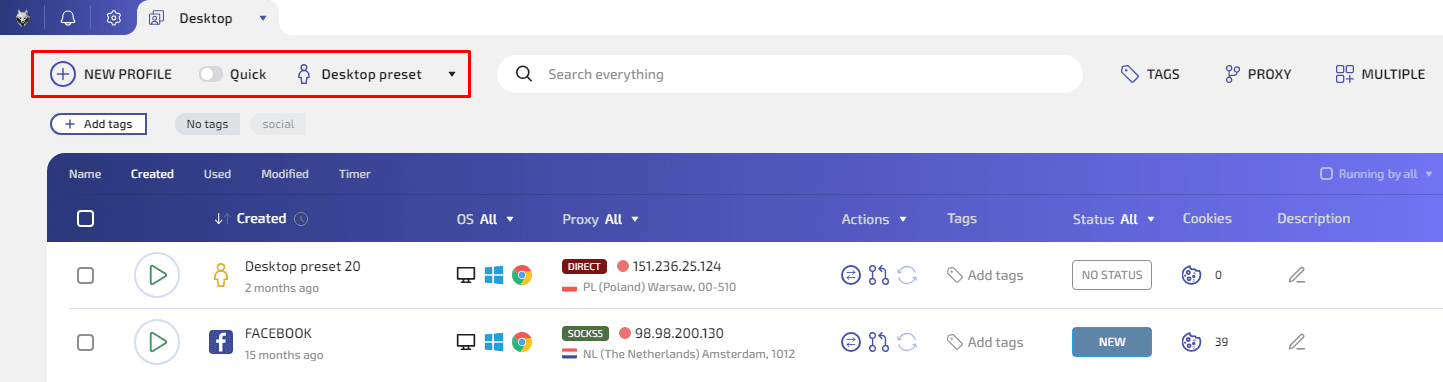
Choose the profile you want to use, or click NEW PROFILE.
- 3
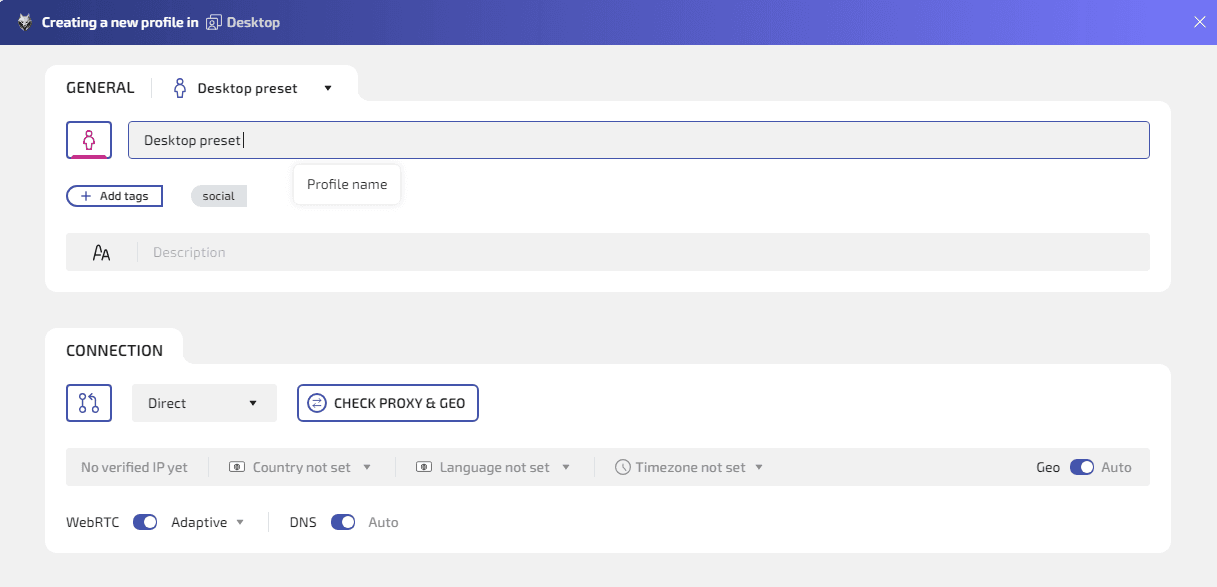
Open the profile settings and go to CONNECTION.
- 4
Choose the correct connection type: HTTP for HTTP proxies, SOCKS5 for SOCKS5 proxies.
Do not choose DIRECT if you want the profile to use the proxy — DIRECT means it uses your normal connection.
- 5
Paste the proxy as
host:port@login:password. Check for extra spaces — a single wrong character stops it working.
Test before you launch
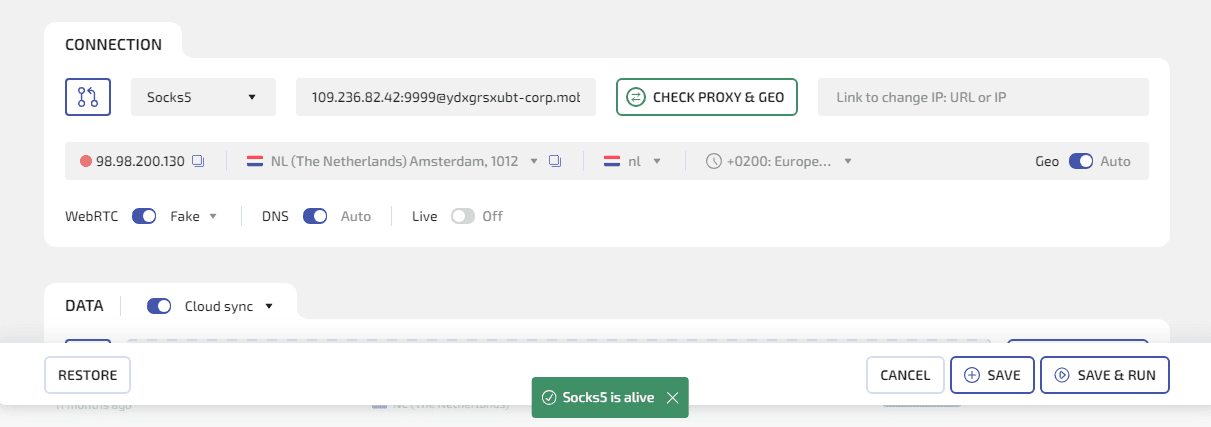
Click CHECK PROXY & GEO. WADE X tests the proxy and shows the status, IP address, country, city, and timezone. If it looks right, click SAVE to keep the settings or SAVE & RUN to launch immediately. If the check fails, fix the details first — don't launch yet.
What to check after launch
Once the profile opens, check the IP again inside the launched profile. Make sure:
- The IP is not your real local IP
- The location matches the PROXIES.SX proxy you expected
- Timezone and language are not strange for that location
- The profile is not accidentally on DIRECT
Using Proxy Manager for more profiles
One profile? Add the proxy directly in CONNECTION. Working with many? Use Proxy Manager: open Desktop → click PROXY → NEW PROXY → give it a clear name → select HTTP or SOCKS5 → enter host:port@login:password → save → assign it to the right profile.
Simple names work best:
PROXIES.SX — US mobile — Profile 01PROXIES.SX — SOCKS5 — test profilePROXIES.SX — team profile groupFor many proxies at once, use IMPORT FROM LIST — easier than pasting the same details repeatedly, and it helps teams avoid mistakes.
Common mistakes
Wrong proxy type
A SOCKS5 endpoint set to HTTP (or vice versa) will fail. Match the type to your PROXIES.SX proxy.
Wrong format
WADE X expects host:port@login:password. Don’t paste only the host, don’t drop the password, don’t add spaces.
Using DIRECT by accident
If CHECK PROXY & GEO shows your real IP, the profile is probably still on DIRECT.
Testing outside the profile
Always test inside the launched WADE X profile — your normal browser shows a different IP.
Reusing one proxy everywhere
Using the same proxy for every profile loses the benefit of per-profile organization. Plan which proxy belongs to which profile.
Quick setup checklist
Before launch
- PROXIES.SX proxy is active
- Host, port, username, password copied exactly
- Connection type matches the proxy type
- String uses host:port@login:password
- CHECK PROXY & GEO works
- IP and location look correct
- Saved with SAVE or launched with SAVE & RUN
After launch
- IP checked inside the WADE X profile
- Profile is not using DIRECT
- Location looks correct
- Timezone and language reviewed
- Proxy assignment is easy to find later
Frequently asked questions
WADE X expects the proxy as host:port@login:password — the host and port joined by a colon, then @, then your username and password joined by a colon. The protocol (HTTP or SOCKS5) is selected separately in the CONNECTION tab. Paste with no extra spaces; a single wrong character stops the proxy from connecting.
Match whatever your PROXIES.SX proxy is. If the endpoint is HTTP, choose HTTP in WADE X; if it is SOCKS5, choose SOCKS5. Do not mix them — a SOCKS5 endpoint set to HTTP (or vice versa) will fail the CHECK PROXY & GEO test.
Almost always because the profile is still set to DIRECT (no proxy), or the proxy string has a typo or extra space. DIRECT means the profile uses your normal internet connection. Switch the connection type to HTTP or SOCKS5, re-paste the host:port@login:password string, and run the check again.
Use Proxy Manager: open Desktop, click PROXY, add a proxy with NEW PROXY, name it clearly (e.g. "PROXIES.SX — US mobile — Profile 01"), set HTTP or SOCKS5, paste host:port@login:password, save, and assign it to the right profile. For many proxies at once, use IMPORT FROM LIST. Keep one planned proxy per profile.
Yes — when your provider supports them, real 4G/5G mobile IPs are the better match for WADE X mobile profiles because the device fingerprint (a phone) and the network identity (a carrier IP) line up. PROXIES.SX provides real mobile and residential IPs you can assign per profile.
Get a proxy route for your WADE X profiles
Real 4G/5G mobile + residential IPs across 100+ countries - $4/GB → $2.40 at volume, free endpoints, free rotation, no monthly fees. Assign one per profile and check it before you launch.